Getting started
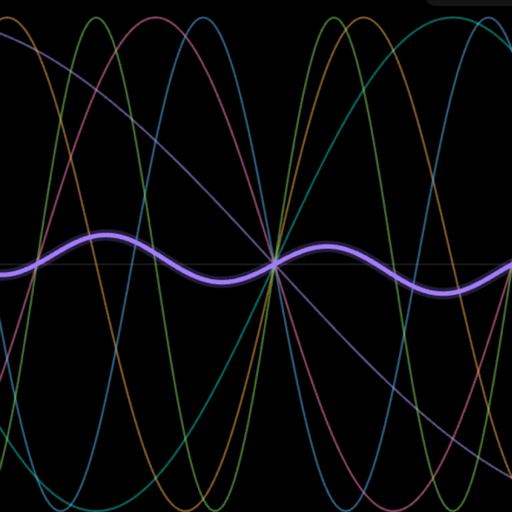
Yamaha's DX7, released in 1983, made its sounds with FM synthesis: simple waves that change the pitch of other waves, very fast, to make complex tones. Its electric pianos, basses and bells are all over 1980s records. Rithmatic runs the same six-operator FM engine on your phone, tablet or computer, and comes with tens of thousands of DX7 patches.
- Open Rithmatic. It starts on the PATCHES screen, which shows a grid of pads.
- Tap a pad to choose that patch.
- Tap KEYBOARD and play the on-screen keys. On a computer you can also play with the A S D F row.
You don't need to plug anything in, sign up, or be online. A MIDI keyboard and a hardware synth are optional.
Compatibility: iPhone, iPad, Mac and Android, with the KORG volca FM2 and Yamaha DX7
Rithmatic runs on iPhone, iPad, Mac (Apple Silicon and Intel) and Android phones and tablets, and plays with nothing plugged in. A hardware FM synth is optional.
Devices and minimum OS
- iPhone and iPad: iOS 15 and iPadOS 15 or later. The Audio Unit (AUv3) instrument plugin works in GarageBand on iPad and other AUv3 hosts.
- Mac: macOS 12 Monterey or later, on Apple Silicon or Intel, with an Audio Unit instrument for hosts such as Logic Pro, GarageBand and Ableton Live.
- Android phone and tablet: Android 7.0 or later.
- The patch-of-the-day widget needs iOS 17 or macOS 14. There is no Apple Watch, Wear OS or TV version.
- Voice (singing through the synth) is on iPhone, iPad and Mac, with the built-in mic, a wired headset, a USB mic or an audio interface (and on a Mac, a Bluetooth mic too), and as the Rithmatic Voice Audio Unit effect on iPad and Mac.
Hardware
- KORG volca FM2 (firmware 1.10 or later): Rithmatic sends patches, reads and writes its 64 memory slots, reads and writes its 16 patterns, and backs up the whole synth.
- Yamaha DX7 family, send only: Yamaha DX7 (mkI), DX7II (mkII), TX7, TX802, the original KORG volca FM and the M-VAVE FM-1. Rithmatic sends the current patch or a 32-voice bank; these synths can't send data back. The FM-1 needs its receiving track set to DX7: see M-VAVE FM-1.
- MIDI keyboards: any USB or Bluetooth MIDI keyboard plays Rithmatic, with velocity and aftertouch.
Connections
- USB MIDI on every platform. A synth with only 5-pin DIN MIDI needs a class-compliant USB-MIDI interface. Phones and tablets may need a USB-C or USB-OTG adapter.
- Bluetooth MIDI on iPhone, iPad and Mac, and on Android 12 or later. On Android 7 to 11, use USB.
- No internet or account is needed.
Known limits
- The PATTERNS and SNAPSHOTS tabs work only with a volca FM2.
- Rithmatic doesn't read memory back from DX7-family synths.
- Voice isn't available on Android yet.
- A recorded take is mono, so Voice's left-to-right spread is folded into the middle.
- In a host, Rithmatic Voice's preset list is the synth's FM bank, not Voice presets.
KORG and volca are trademarks of KORG Inc. Yamaha, DX7, DX7II, TX7 and TX802 are trademarks of Yamaha Corporation. M-VAVE is a trademark of its owner. Rithmatic works with these instruments and is not affiliated with or endorsed by their makers.
The main screen
The header
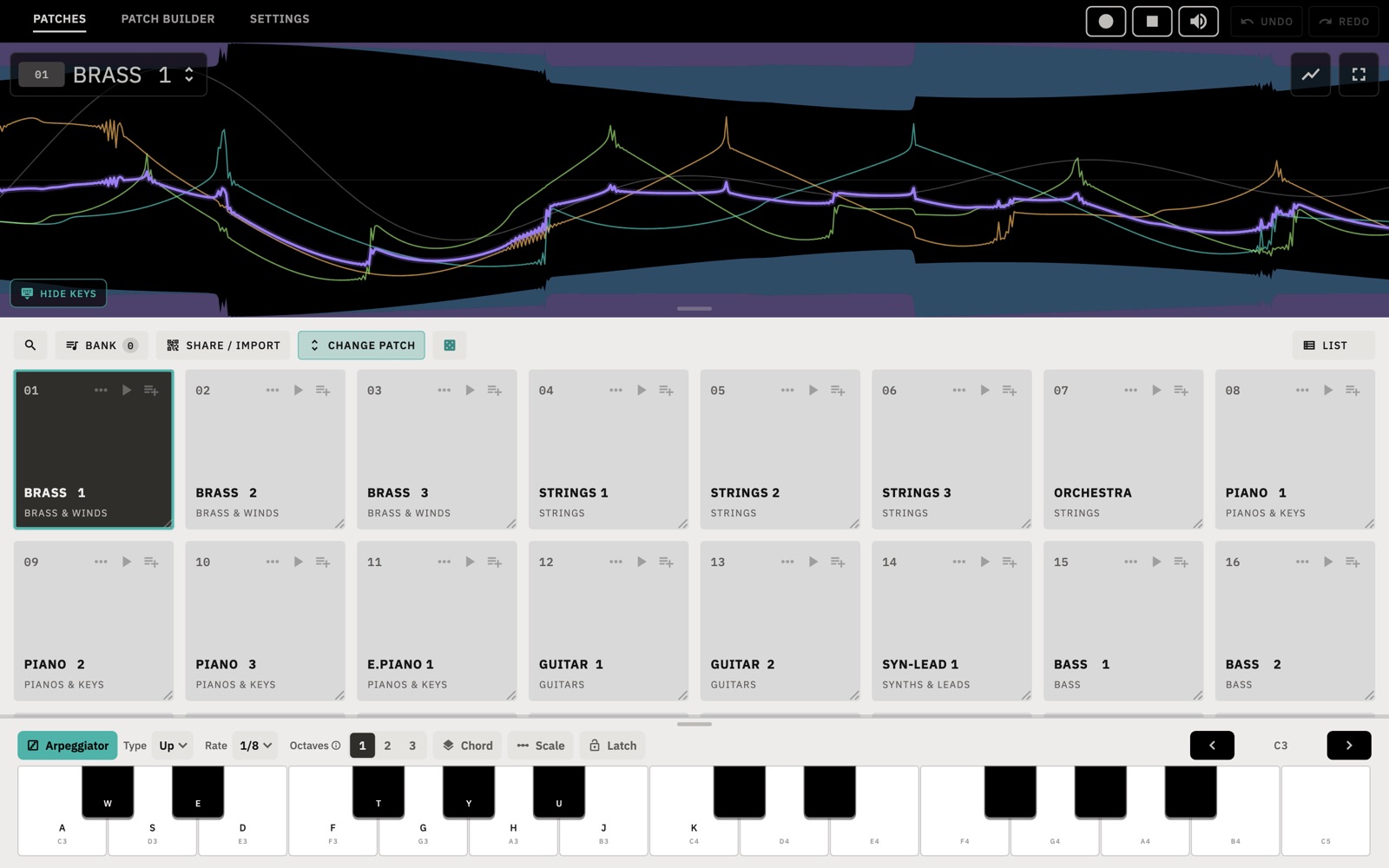
- PATCHES, PATCH BUILDER and SETTINGS switch between the three main screens. If you choose a Volca FM2 in Settings, PATTERNS and SNAPSHOTS are added.
- ● records what the app plays. ■ stops all sound, including held notes and the arpeggiator.
- The speaker button sets the volume and can mute everything.
- UNDO and REDO show what they will undo or redo when you hover over them or press and hold.
The screen
The black panel draws the sound while you play. Each thin coloured line is one of the patch's six operators, and the thick purple line is the combined sound you hear. Drag the handle at the bottom of the panel to resize it, or use the button in its corner to go full screen. The patch name is shown at the top left; tap it to choose a different patch.
The scope
At the top right, three joined buttons choose what the black panel is for, one at a time: Waveform (the drawing of the patch described above), Scope and, on iPhone, iPad and Mac, Voice. The chosen one's own buttons are in the row underneath, so nothing moves when you switch. Scope turns the panel into a scope, which shows the sound the synth is actually playing. It works with any Look, and your choice is kept for next time.
- The first three buttons in the row under it choose the view: the wave over time, the spectrum (how loud each frequency is now), or the spectrogram (frequencies over time, newest on the right).
- In the wave view, pinch or scroll to change the time across the screen, drag up and down to change the height, and double tap to go back to automatic.
- The readings, in the bottom right corner, show the note, how far it is from in tune, its frequency, the level and the time scale. The level turns amber when it nears full scale.
- MODEL means there is no sound to read, as in a plugin or when an outside synth is playing, so the screen shows the calculated wave instead.
The toolbar and pads
Below the screen are search, BANK, SHARE / IMPORT, CHANGE PATCH and a dice button that picks a random patch. The pads are described in Pads and your bank.
Playing
Ways to play
- On-screen keys: tap KEYBOARD to show them and HIDE KEYS to hide them. The arrows on the right change the octave. Drag the handle above the keys to change their height, and double-tap it to reset.
- Computer keyboard: A to K play the white keys and W E T Y U the black keys, starting from the lowest C on the on-screen keys.
- MIDI keyboard: connect one over USB or Bluetooth (on Android, Bluetooth needs Android 12 or later). All MIDI inputs play the app by default.
- In a DAW: see Using the plugin.
- With your voice: sing into a mic and play; see Singing with Voice.
Arpeggiator
Turn on Arpeggiator above the keys and hold a chord. Rithmatic plays the notes one after another in a repeating pattern.
- Type sets the order: Up, Down, Up & down, Random, or As played.
- Rate sets the length of each note. 1/16 plays four notes per beat, and T means triplets.
- Octaves sets how many octaves (1 to 3) the pattern covers before it repeats.
- Latch keeps notes going after you let go, and keeps the pattern playing when Arp is on. Press a key to add it, and press it again to take it out. Turn Latch off to stop.
Chord
Turn on Chord above the keys and each key plays a whole chord built on it, and every key that is sounding lights up. The menu beside it picks the chord, and Notes sets how many notes it plays, from 2 to 6. Turn on Arpeggiator as well and one key runs through the whole chord.
Scale
Turn on Scale and every note stays in the scale you choose from the two menus beside it: the key and the scale. Keys outside the scale are dimmed and play the nearest note inside, and the key the scale starts from is marked with a small bar. The notes of a chord stay in the scale too.
MIDI keyboards follow Chord and Scale too, though notes sent by a plugin host do not.
Touch and pitch
These options are in Settings › Sound:
- Key velocity: when on, notes play as hard as you hit the keys. When off, every note plays at a strength you choose.
- Aftertouch: pressing harder on a held key adds vibrato, tremolo or swell, if your keyboard supports it.
- Voices: POLY plays up to sixteen notes at once. MONO plays one note at a time, as a DX7 does in mono mode.
- Glide makes each note slide from the previous one (0 is off, 99 is the slowest). Glissando makes the slide step through each semitone.
- Tuning: Equal is standard tuning. Just tunes the thirds, fifths and sixths from C to pure intervals. Alpha, Beta and Gamma are scales by Wendy Carlos that don't repeat at the octave.
Singing with Voice
Voice lets you sing through the synth. Harmony turns your voice into a choir on every note you hold, and its AutoChoir makes that choir tight and huge in one tap. Vocoder makes the patch talk with your voice: the classic robot sound. Tune snaps your singing to the notes of the Scale. The sound is made on your device as you sing, and nothing is sent anywhere. To keep a take, press ● in the header: it records the app's sound, Voice included. The take is mono, so Voice's left-to-right spread is folded into the middle.
What you need
- A microphone. The one built into your iPhone, iPad or Mac works, and so does a wired headset, a USB mic or an audio interface. A Mac can also use a Bluetooth mic. On iPhone and iPad, a Bluetooth mic isn't used: with Bluetooth headphones on, you hear Voice through them and sing into the device's own mic.
- Headphones help. Through the speakers, the mic hears the synth as well as you, which can howl and muddy the effect. Wired headphones are best, because Bluetooth headphones add a delay you can hear while you sing.
- The first time you switch Voice on, Rithmatic asks to use the microphone.
- Voice is on iPhone, iPad and Mac. On iPad and Mac it is also a plugin: see Rithmatic Voice in a DAW.
Getting started
- Tap Voice, the key with a microphone on it at the top right of the screen, after Scope. It's on the Patches screen and in the Patch Builder. The first time, Rithmatic asks to use the microphone and switches it on. If you say no, the screen stays as it was and a note says where to allow the mic later, with a button that opens Settings.
- Tap Voice again to mute the mic, and again to turn it back on. A dot on the key shows the mic is live. It stays as it is when you choose Waveform or Scope, so you can watch your voice on the scope as you sing. When Rithmatic opens, the mic starts muted.
- Hold a chord on the keys or a MIDI keyboard, and sing.
With Voice chosen, the row under the mode keys shows its on/off switch (the same as tapping the key), a line saying where the voice is coming in or why it isn't, and the settings button. While the mic is on, the settings button opens the effects (Harmony, Vocoder and Tune), each effect's main settings, and More settings for the rest; while it's off, the button is dimmed. On the Patch Builder's editing tabs, a single microphone key opens a panel with the switch as well. The line under the switch shows the delay you hear, such as “Delay 24 ms”; over about 50 ms it suggests wired headphones. The first few times you turn Voice on in Harmony or Vocoder, it says “Hold a chord and sing” until you play a note. Rithmatic remembers how you left it. If you're using the built-in mic and speakers, a tip suggests headphones or an external mic; you can close it.
The settings go by plain names. With Settings › Control names set to DX7, they use the names a studio uses instead, given in brackets below.
Harmony and AutoChoir
Harmony sings your own voice again on every note you hold, up to eight voices. Its AutoChoir switch, at the top and on to start with, makes that a choir of your own voice: every note you hold sings your voice back in its own octave, all in time and in tune. While you hold keys, the choir is the whole sound, with no lead. With no keys held you hear your own voice, in tune. Hold chords and sing one long note, or talk.
With AutoChoir on, Customize › under the switch opens its own settings, with ‹ Harmony at the top left to go back:
- Add an octave below (Octave double −1), on to start with, adds each note you hold again an octave lower, for a deeper choir.
- Add an octave above (Octave double +1) adds each note again an octave higher, for shine.
- Bigger lows, smaller highs (Formant tracking) lets each voice's tone follow its note, so the low voices sound bigger and the high ones smaller.
- The choir has up to eight voices. The octave copies use more of them, and the notes you play come first.
The choir sings the notes you play where you play them, so a wide chord with a low bass note makes a choir from bass to falsetto. With Chord on, one key plays a whole chord, so one finger is enough.
With AutoChoir off, Harmony is a looser group of backing voices near where you sing, beside your own tuned voice, and shows its own settings instead:
- You or the choir (Lead/Harmony balance): your own voice, tuned, against the harmonies. All the way to the choir leaves your own voice out.
- Tight or loose (Spread: detune/delay/pan): higher puts the voices a little out of tune and out of time with each other and spreads them left to right, like more people singing.
- Keep each key's octave (Exact octave, no folding): each voice sings in the octave of the key you hold, from low to high, instead of staying near your own voice.
With AutoChoir on, these are under More settings; with it off, AutoChoir's own settings are.
Vocoder and Tune
- Vocoder: your voice shapes the synth's sound, for the classic robot voice. The keys give the notes and you give the words. You hear it through the patch you've chosen, so a brass patch and a string patch give two different voices. Hold a chord, or one key with Chord on, and sing. With no keys held it's silent.
- Tune: pitch correction. Each note you sing is pulled to the nearest note of the Scale, or to the nearest semitone when Scale is off. You can sing over the synth or on your own.
More settings
Each effect shows only the settings it uses.
| Setting | What it does |
|---|---|
| Snap to the note (Retune speed) | How fast a note is pulled into tune. The slider shows the glide time in milliseconds, from a slow 200 ms up to instant at the top. Instant snaps at once, for the robotic sound; a slower glide lets you slide into notes and keeps your vibrato. |
| Voice character (Formant shift) | Makes the voices sound bigger and darker, or smaller and brighter, without changing the notes. In the middle your voice is as it is. |
| How much effect (Dry/Wet) | How much of the effect you hear against your plain voice. |
| Hear the synth (Synth level) | How much of the synth itself you hear beside the voice. Harmony starts it at 0, since there the keys only choose the notes. |
| Mic volume (Input gain) | How loud the mic comes in. Turn it up if the meter barely moves, and down if it turns red. |
| Voice volume (Output level) | How loud the voice comes out. |
Under More settings, the panel also shows a meter, teal while it hears you, grey while it waits for your voice and red when it's too loud, with the note you sang and the note it was pulled to, and the delay (latency) the effect adds.
Tips
- Sing steady vowels. Long "ah", "oh" and "oo" sounds are easiest for Voice to follow. Whispers and hard consonants have no note in them.
- Play wide chords for AutoChoir, with a low bass note. Spread the notes over two octaves or more and the choir spreads with them. Very low and very high voices get grittier.
- Wear headphones to stop feedback, and so you hear the effect rather than the room.
- For the vocoder, pick a sustained patch, such as brass, strings or an organ. A short, plucked sound fades before your words do.
- Keep the mic at a steady distance, and set Mic volume so the meter is teal and never red.
Rithmatic Voice in a DAW
On iPad and Mac, the app also installs Rithmatic Voice, an Audio Unit (AUv3) effect. It puts Voice on a track in your host: the voice comes from the track it sits on, and the notes from MIDI the host sends it.
- Open the Rithmatic app once first, so the plugin can find your library.
- On a vocal or mic track, add Rithmatic Voice as an effect. On the Mac it's listed under Best Practice.
- Route a MIDI track or keyboard to it. Harmony and Vocoder sing the notes it receives; Tune works without any.
- Open its window to choose the effect and its settings. They're saved with your project, and the effect keeps running with the window closed.
Rithmatic Voice needs a host that can send MIDI to an effect (often called a MIDI-controlled effect). Not every host can: GarageBand can't. Its preset list in the host is the synth's FM bank, not Voice presets; your Voice settings are saved with the project instead. The Rithmatic instrument plugin is unchanged and has no Voice key.
Troubleshooting Voice
- No sound from Voice: check that the mic is on (a dot on the Voice key) and that the meter moves when you sing. If it doesn't, allow Rithmatic the microphone: on iPhone and iPad in Settings › Rithmatic › Microphone, and on the Mac in System Settings › Privacy & Security › Microphone. The Vocoder is silent until you hold notes, so play some keys. If Keys play in Settings › Sound plays only the hardware synth, Harmony and Vocoder have nothing to sing with, and the panel says so: set it to APP or BOTH. Check that Voice volume and How much effect aren't turned down.
- Howling or ringing (feedback): the mic is hearing the speakers. Put on headphones, turn the volume down, or lower Mic volume.
- The voice comes out late (latency): Bluetooth headphones and speakers add a delay you can hear, so use wired headphones. The Vocoder adds the least delay of the effects. In a DAW, lower the host's buffer size.
- Voice switched itself off: on iPhone and iPad it turns off when you leave Rithmatic. On a Mac it turns off when you hide Rithmatic (⌘H) or minimise its window, but not when you switch to another app or cover the window. If Voice started on an external mic (a wired headset, USB mic or audio interface), unplugging that mic turns it off too. Switch it on again. In a DAW, the plugin keeps running with its window closed.
Finding sounds
Tap CHANGE PATCH or the patch name to open the catalog. The patch you pick replaces the one on the selected pad.
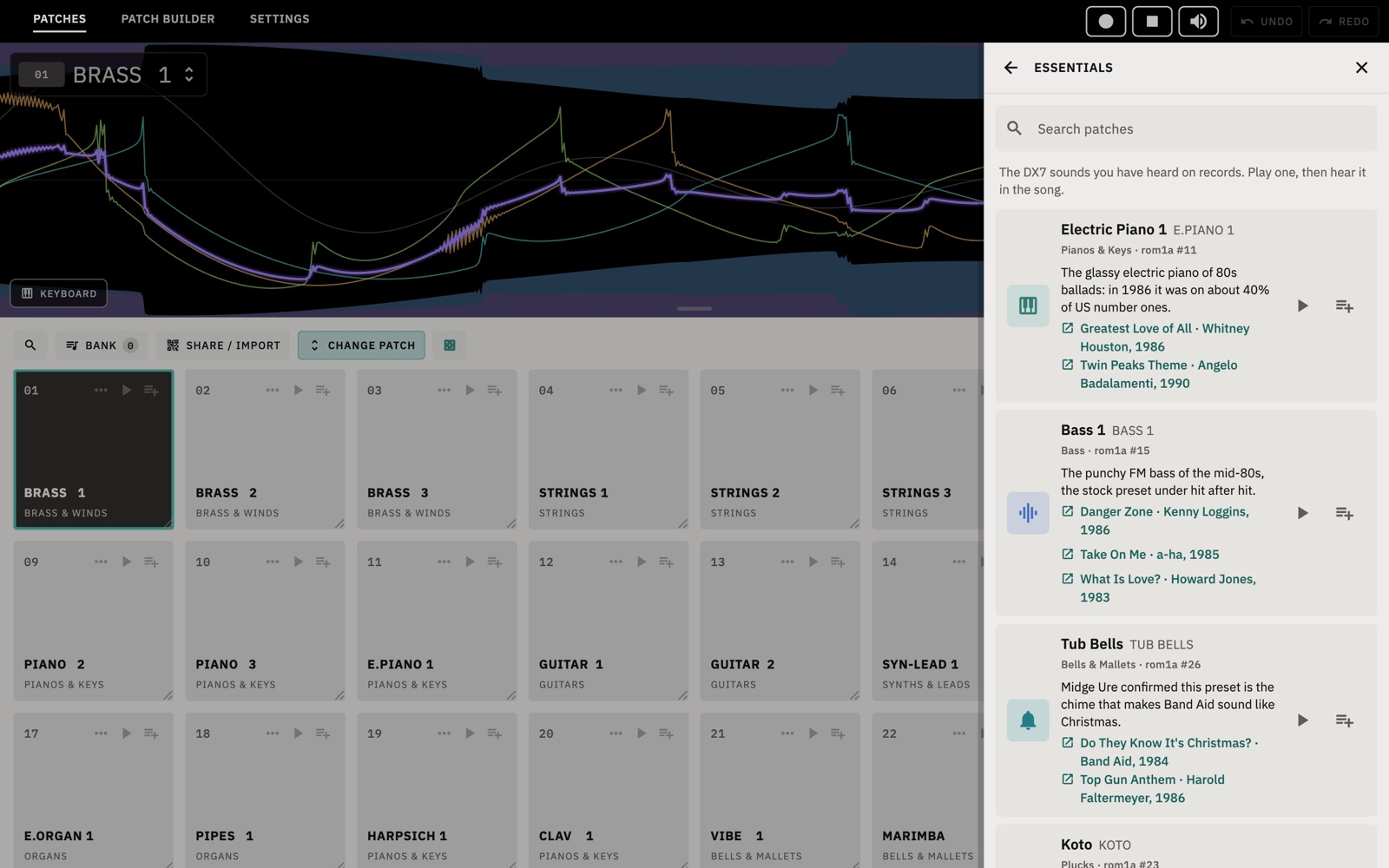
- Essentials opens first. It lists the best-known factory sounds, each with links to songs that use it.
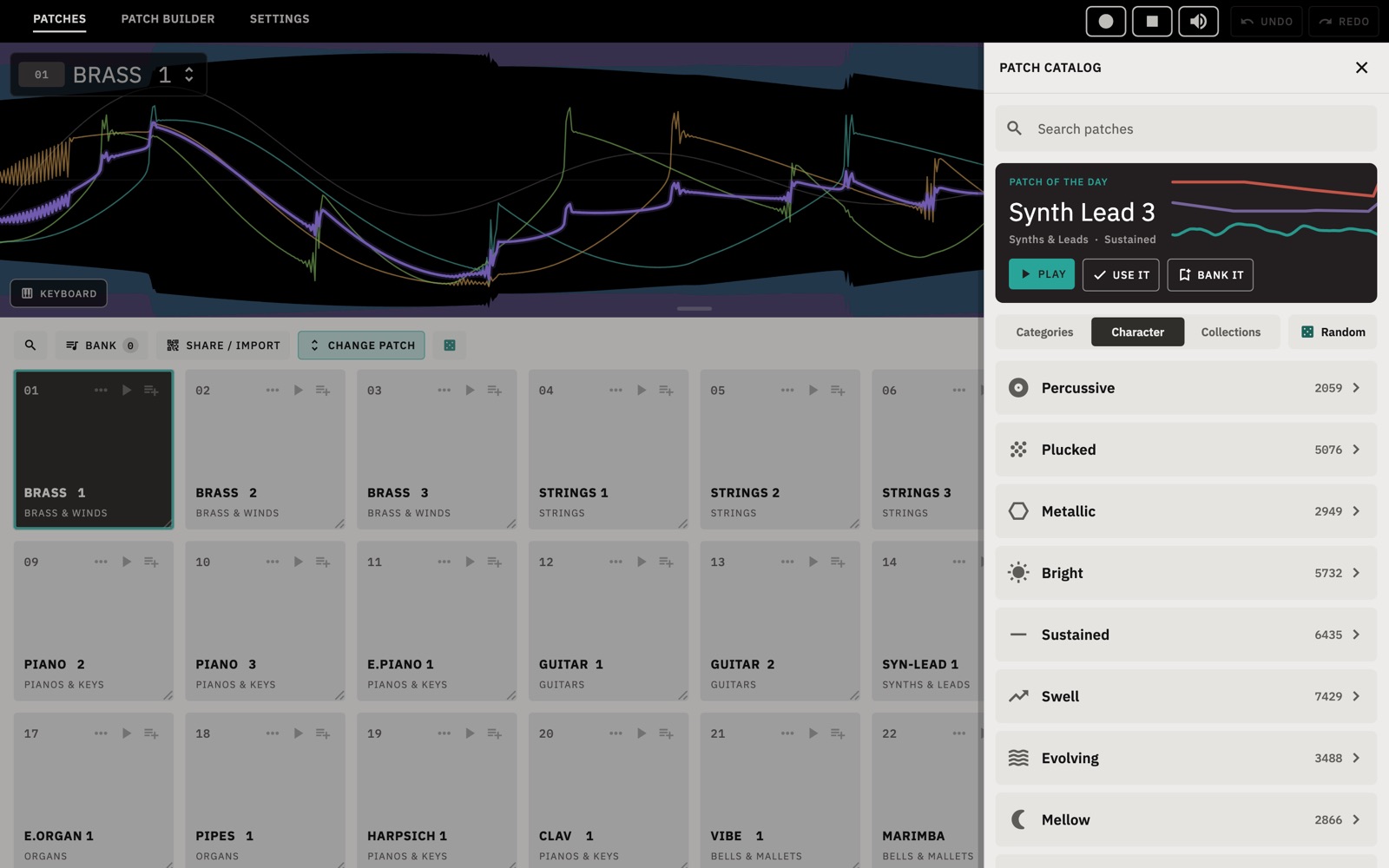
- Patch of the day changes daily. PLAY plays it, USE IT puts it on the selected pad and BANK IT adds it to your bank.
- Categories groups patches by instrument family, such as Pianos & Keys, Bass, Strings, or Bells & Mallets.
- Character groups patches by how they sound over time: Percussive, Plucked, Metallic, Bright, Sustained, Swell, Evolving or Mellow.
- Collections groups patches by source: the original factory ROMs, third-party cartridges and community archives. Your own collections are here too: Favorites, Built Here, Blended Here and Shared With Me.
- Search matches patch names and categories. Random, or the dice button, picks any patch.
In each list, ▶ plays a patch without selecting it, and + adds it to your bank.
Pads and your bank
Pads
The Patches screen has 64 pads, which start out filled with the original DX7 factory ROM. Tap a pad to play it. Each pad has three buttons:
- ▶ plays the patch without selecting it.
- ≡+ adds it to your bank.
- ⋯ opens a menu with Change patch, Patch info, Blend with…, Take to patch builder and Share this patch.
Drag one pad onto another to swap them. Drag the corner of a pad to make all the pads larger or smaller. LIST and GRID switch between a list and the grid, and the magnifying glass searches the pads.
Patch info
⋯ › Patch info shows the patch's category and character, its other names, the banks it appears in and who made it. SOUNDS LIKE THIS lists the patches in the library that sound most similar. You can also add tags here, and delete patches you made or imported. Deleting can be undone.
Your bank
The BANK button switches the grid to your bank, which is your own list of patches to keep. It can be any length, and you can drag patches to reorder it. EXPORT .SYX saves the bank as standard DX7 files that Dexed, other DX7 editors and real DX7s can open. If a hardware synth is connected, the first 32 patches can be sent to it as one bank.
Blending patches
Blend combines two patches into eight new ones. Each new patch takes every operator unchanged from one patch or the other, and takes its algorithm from one of them, so the results sound like combinations of the two rather than an average.
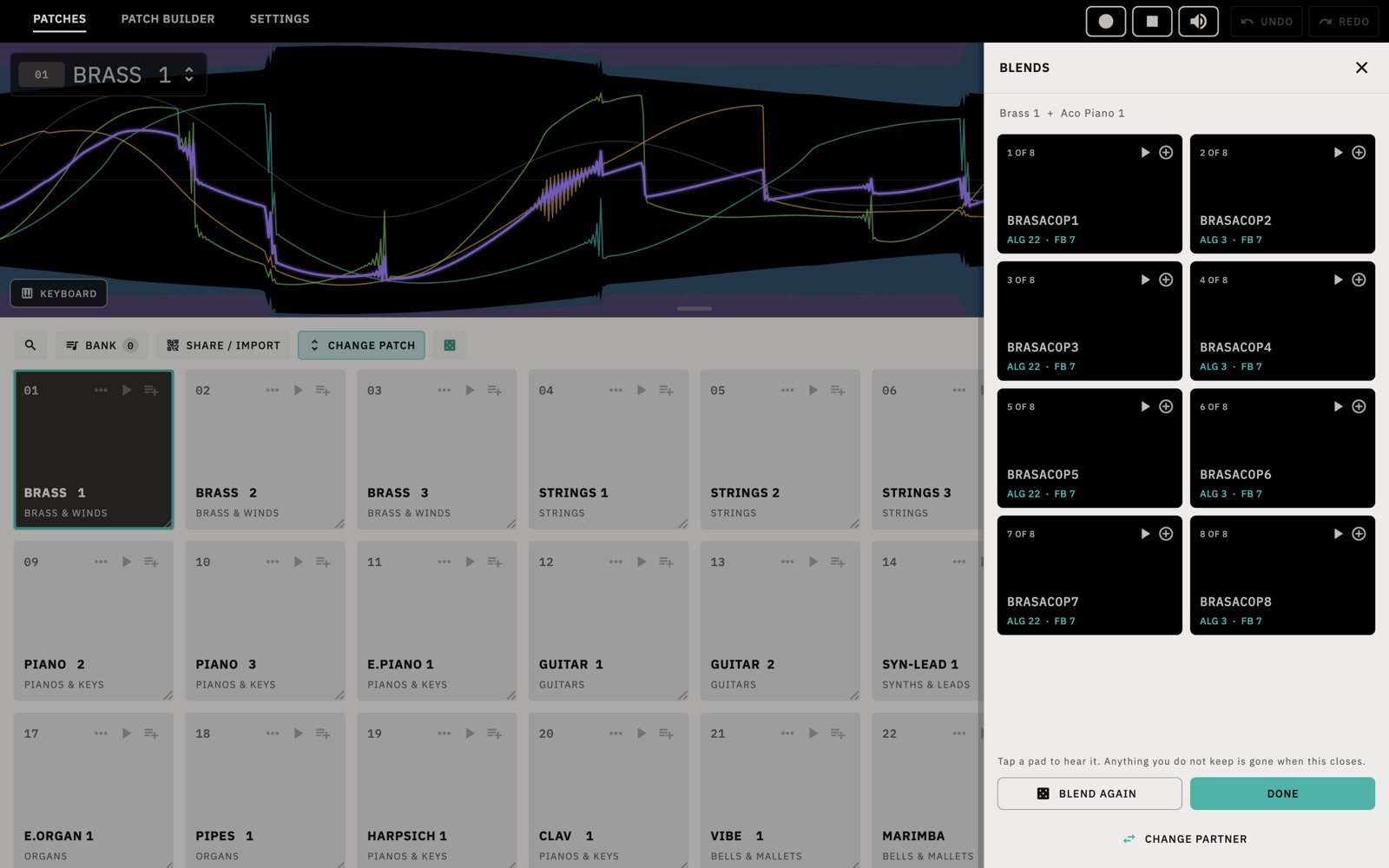
- On a pad, choose ⋯ › Blend with…
- Choose a second patch from the library, use the patch of the day, or choose Surprise me.
- Tap BLEND. Play each result and tap ⊕ on the ones you want to keep.
- BLEND AGAIN makes eight more from the same two patches. CHANGE PARTNER lets you choose a different second patch.
Blends you don't keep are discarded when you close the panel. The ones you keep are saved in Collections › Blended Here.
How FM works
A few terms explain most of what you see in the Patch Builder.
- Operators: every patch has six. Each one produces a simple wave and has its own envelope, which shapes its level over time.
- Carriers and modulators: a carrier is an operator you hear. A modulator isn't heard directly. Instead it changes the pitch of the operator it feeds so quickly that the result is a new tone. This is what gives FM its bright, metallic and bell-like sounds.
- Level: on a carrier, level is volume. On a modulator, it is the amount of modulation. More modulation makes the sound brighter and buzzier.
- Ratio: the operator's pitch as a multiple of the note you play. Whole numbers such as 1, 2 and 3 sound harmonic. Other values, such as 1.41 or 3.5, sound inharmonic, like bells.
- Algorithm: the way the six operators are connected, which decides which ones are carriers. The DX7 has 32 algorithms, and so does Rithmatic.
- Feedback: one operator in each algorithm can modulate itself. Small amounts add grit, and large amounts turn it into noise.
The Patch Builder
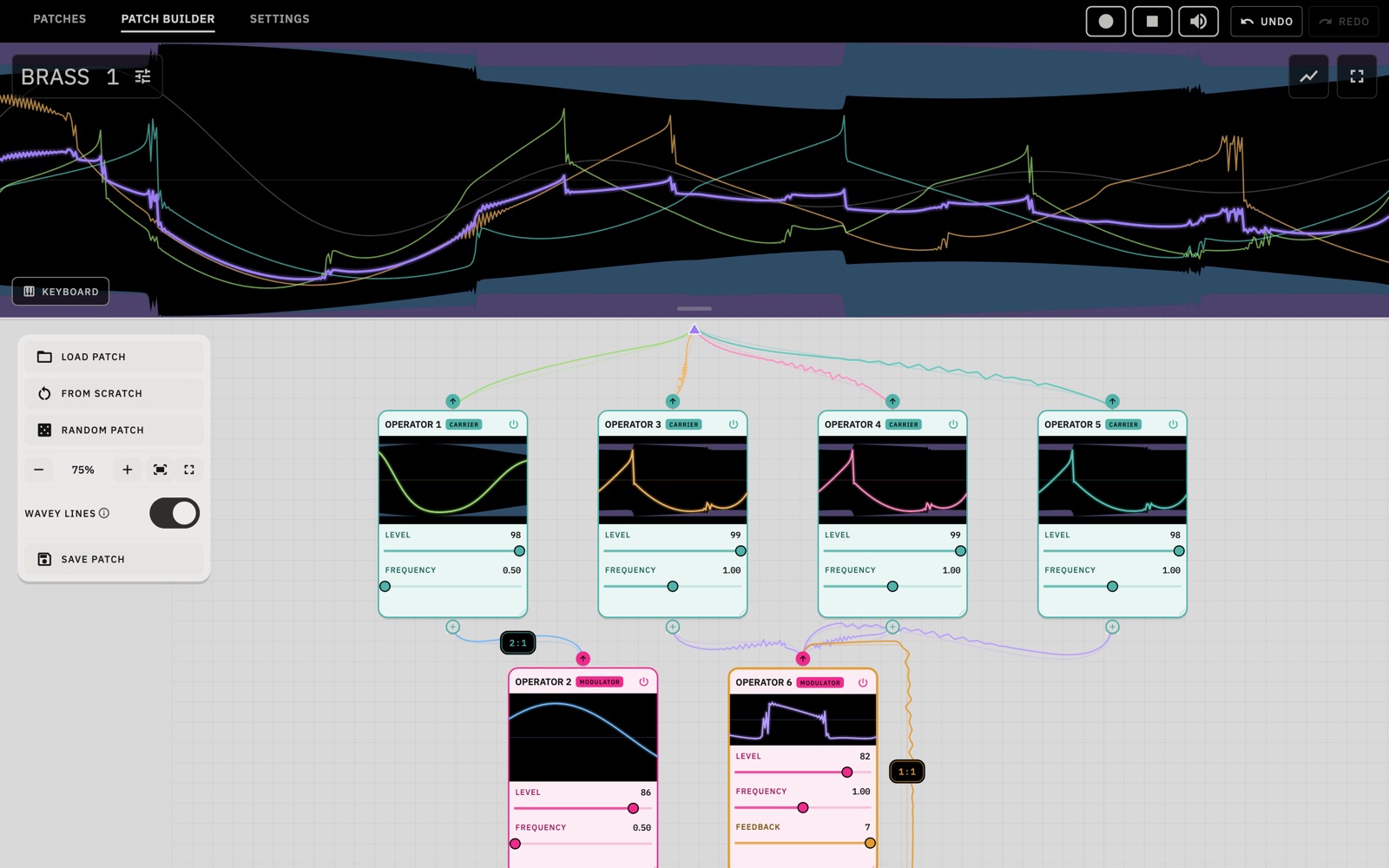
Open the PATCH BUILDER tab, or choose ⋯ › Take to patch builder on a pad. The patch is shown as a diagram of its operators, and each one shows its own wave as you play.
The canvas
- The triangle at the top is the output. Carriers are in the row below it and are labelled CARRIER. Modulators are below the operators they feed and are labelled MODULATOR.
- Each operator card shows the operator's wave, its LEVEL and its FREQUENCY (ratio). Move the sliders while holding a note to hear the change. The frequency slider stops on whole numbers; drag away from the slider for finer steps.
- The power button on a card turns that operator off, so you can hear what it contributes.
- The operator with feedback also has a FEEDBACK slider.
- To change the connections, drag from an operator's output (the arrow at the top of the card) to another operator's input (the + below it). Rithmatic chooses the closest of the 32 algorithms. You can also choose one directly from the ALGORITHM menu on the canvas.
The tool column
- LOAD PATCH starts from any patch in the catalog, or from a starting point you saved.
- FROM SCRATCH loads the DX7's initial voice: a single sine wave on operator 1.
- RANDOM PATCH loads a random patch.
- The zoom controls (−, +, fit and full screen) change the view of the canvas.
- WAVEY LINES draws each connection as the wave travelling along it. Turn it off to draw plain lines.
- Drag the small grip in a node's bottom right corner to resize every node together. It catches at the default size, and the size is kept for next time.
- In the True wave Look, hold a node's title or a cable to see the wave with and without that operator. The sound doesn't change.
- SAVE PATCH saves the patch under a name you choose. It is added to your bank and to Collections › Built Here, and nothing is overwritten. With a Volca FM2 connected, you can also save it to one of the FM2's memory slots.
Editing a voice
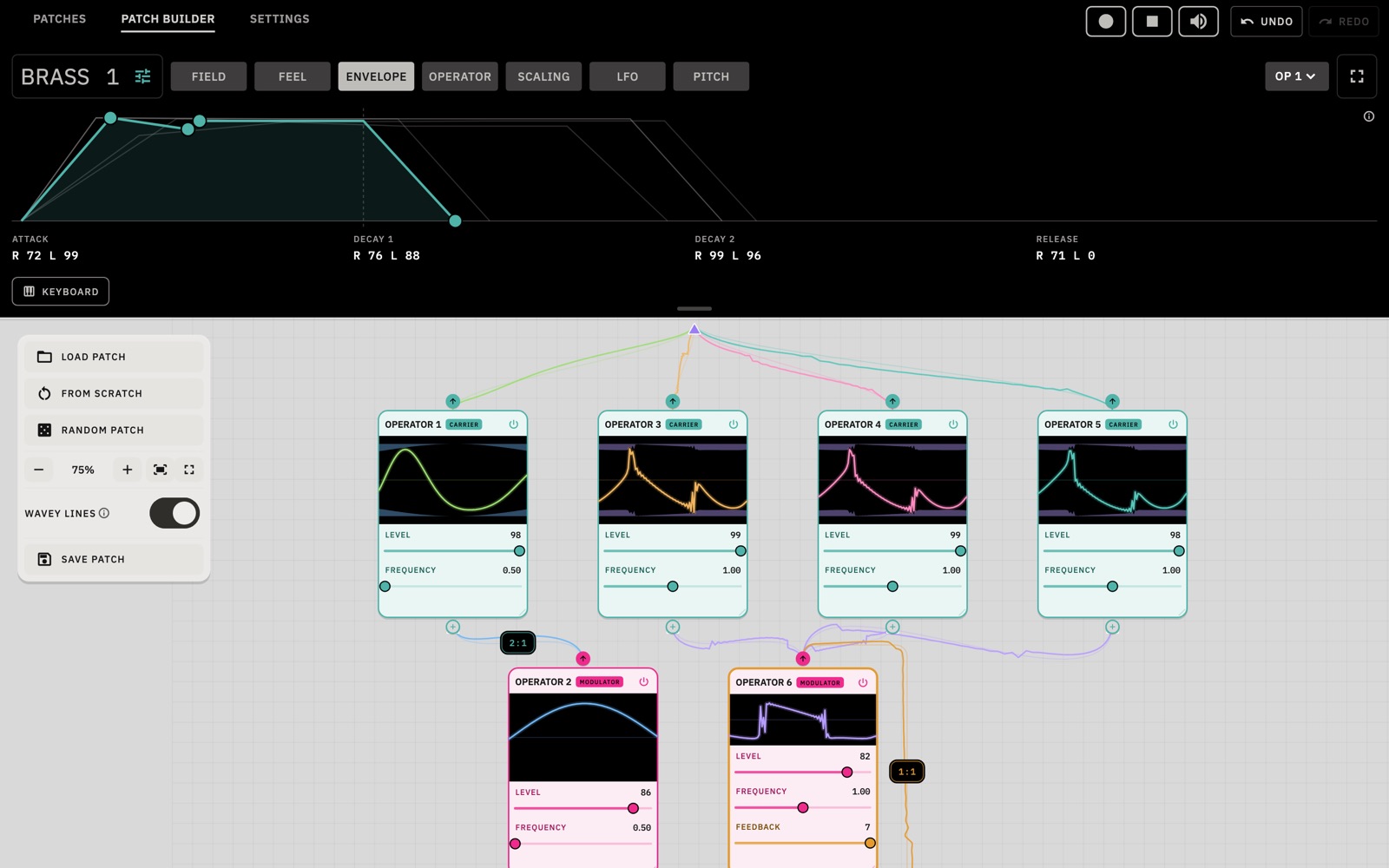
Tap the sliders icon next to the patch name to open the editor tabs on the screen. The keys keep working while you edit. Tabs that edit a single operator have an OP menu on the right, and selecting a card on the canvas also chooses the operator. Tap ⓘ next to any control for an explanation.
| Tab | What it controls |
|---|---|
| FIELD | Shows the waveform of the sound as you play. This is the default view. |
| FEEL | Settings for the whole patch. THICKNESS detunes the operators slightly against each other, like a chorus effect. TOUCH sets how much playing harder changes the sound. BRIGHT UP HIGH makes higher notes brighter or darker. With a Volca FM2, its envelope and octave controls are here too. |
| ENVELOPE | How one operator's level changes over a note, in four stages: ATTACK, DECAY 1, DECAY 2 and RELEASE. Each stage has a rate (R) and a level (L). On a carrier this shapes the volume; on a modulator it shapes the brightness. |
| OPERATOR | FOLLOWS sets whether the operator's pitch follows the keys (KEY) or stays at one pitch (FIXED), which is useful for drums and effects. FIXED AT sets that pitch in hertz. DETUNE shifts the operator slightly sharp or flat. TOUCH and TREMOLO set how much the operator responds to velocity and to the LFO. |
| SCALING | How the operator's level changes across the keyboard. Drag the PIVOT KEY left or right, and drag either side up or down. The curve shapes are FALL, FALL LATE, RISE LATE and RISE. FASTER UP HIGH makes the envelope run faster on higher notes, as on a piano. |
| LFO | A slow oscillator for vibrato and tremolo. WAVE sets the shape (triangle, saw down, saw up, square, sine, or sample and hold), SPEED the rate and DELAY how long it waits before fading in. VIBRATO and VIBRATO RANGE set the pitch change, TREMOLO the volume change, and KEY SYNC restarts the LFO with each note. |
| PITCH | The pitch envelope, which bends the pitch over the course of a note. Also TRANSPOSE, in semitones, and OSC KEY SYNC. |
Three sounds to build
Each of these takes a minute or two. Hold a note while you make each change so you can hear it.
A bell
- Tap FROM SCRATCH. You hear operator 1 on its own, a plain sine wave.
- In this algorithm operator 2 modulates operator 1. Raise operator 2's LEVEL to about 70, and the tone gets brighter.
- Set operator 2's FREQUENCY to 3.5. The ratio isn't a whole number, so the tone becomes bell-like.
- Open ENVELOPE and choose OP 1. Drag the DECAY 1 and DECAY 2 handles to the bottom, with DECAY 1 well to the right, so each note fades away slowly.
An FM bass
- Tap FROM SCRATCH, raise operator 2's LEVEL to about 80 and leave its frequency at 1.
- Open ENVELOPE, choose OP 2, and drag its DECAY 1 and DECAY 2 handles to the bottom. The brightness now drops quickly after each note starts, which gives the attack typical of an FM bass. Move DECAY 1 to the right to make the attack longer.
- Play in a low octave. Raise operator 2's level for a harder sound, or lower it for a softer one.
Delayed vibrato
- Choose any patch and open it in the Patch Builder.
- Open LFO. Set WAVE to TRI, VIBRATO RANGE to about 3 and VIBRATO to about 10, then raise DELAY. VIBRATO has no effect while VIBRATO RANGE is 0.
- Hold a long note. The vibrato fades in after a moment.
To keep a sound, tap SAVE PATCH and give it a name.
Settings
| Section | Contents |
|---|---|
| Pay what you like | Optional tips. Tips don't unlock anything; the whole app is free. |
| Sound | Volume, key velocity, aftertouch, poly or mono, glide and tuning. On iPhone and iPad, whether Rithmatic plays alongside music from other apps. |
| Library | Hiding near-duplicates, loading factory ROM banks, and turning patch sets on or off. |
| Look | Light, dark or system appearance; SIMPLIFIED or DX7 control names; and the colours used to draw waveforms, from a preset, or your own hex values under Custom colours ›. The True wave preset draws the wave the engine really makes, with the area each operator changes filled in and the harmonics along the bottom. |
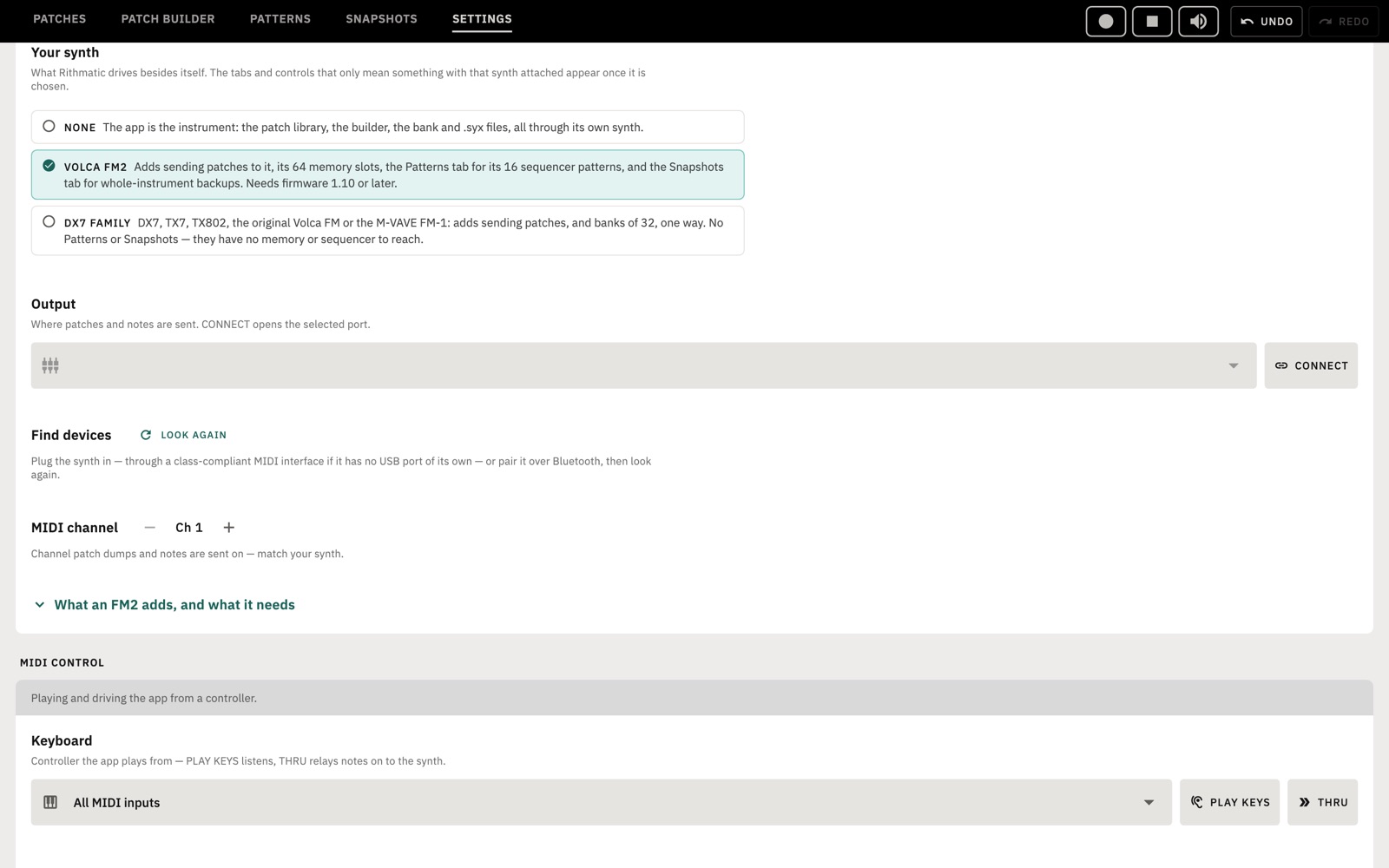
| Hardware | Your synth (None, Volca FM2 or DX7 family), its output port and its MIDI channel. |
| MIDI control | Which MIDI keyboard plays the app; under Advanced MIDI ›, the channel it listens on and MIDI learn, which assigns the transport, tempo, undo and redo to controls on a MIDI controller. |
| Help & support | Keys and shortcuts, Synth terms (all the ⓘ explanations in one list), and a link to email support. |
Using the plugin
Rithmatic is also an Audio Unit instrument plugin, on iPad (AUv3) and on Mac. Open the Rithmatic app once before using the plugin, so the plugin can find your library.
- GarageBand on iPad: add a track and choose Audio Unit Extensions › Rithmatic.
- Mac: Rithmatic is listed under Best Practice in your host's Audio Unit instruments.
The plugin includes the Patches screen and the Patch Builder, and uses the same library as the app. Your bank appears as the plugin's presets. Brightness, Attack, Decay, Release and Feedback can be automated. The patch is saved with your project, and the volume is set by your DAW track.
The app also installs Rithmatic Voice, Voice as an Audio Unit effect. It needs a host that can send MIDI to an effect, which GarageBand can't. See Rithmatic Voice in a DAW.
Connecting a synth
You don't need a hardware synth to use Rithmatic. If you have a Volca FM2 or a DX7-family synth, Rithmatic can send patches to it, and with an FM2 it can also read and back up the synth's memory.
Connecting
- Turn on the synth and connect it over USB. If the synth has no USB port, use a class-compliant MIDI interface. On Apple devices you can also pair over Bluetooth MIDI. On Android 12 or later, turn the synth's Bluetooth MIDI on and tap LOOK AGAIN: Rithmatic looks for Bluetooth devices for 20 seconds and lists what it finds under Output. On older Android versions, use USB.
- In Settings › Hardware, choose VOLCA FM2 or DX7 FAMILY.
- Choose the Output port and tap CONNECT. Set the MIDI channel to match the synth. If the synth isn't listed, check the cable and tap LOOK AGAIN.
Korg Volca FM2
The FM2 needs firmware 1.10 or later. Because it can send data back, Rithmatic can do more with it than with other synths:
- The 64 pads show the FM2's 64 memory slots. Rithmatic reads the slots and can write patches to them. When you reorder pads, the slots are rewritten on the FM2; Rithmatic saves a backup first and checks each slot after writing it.
- Keys play in Settings › Sound sets whether the keys play the app (APP), the FM2 (VOLCA) or both (BOTH).
- The PATTERNS tab shows the FM2's 16 sequencer patterns. You can read them, load one into the sequencer, rename, duplicate, clear and write them back, and start and stop playback and set the tempo.
- The SNAPSHOTS tab backs up the whole FM2, all 64 patches and every sequence, at once. RESTORE TO FM2 writes a snapshot back, and first shows which slots will change.
DX7 family
The DX7 (mkI and mkII), TX7, TX802, original Volca FM and M-VAVE FM-1 receive patches but can't send data back. You can send the current patch, or the first 32 patches in your bank as a single bank. The Patterns and Snapshots tabs are only available with a Volca FM2.
M-VAVE FM-1
The FM-1 receives DX7 patches and 32-voice banks on any of its tracks, as long as that track is set to DX7 on the FM-1 itself; on a track set to anything else, it ignores them. Like the rest of the DX7 family it only receives, so there are no Patterns or Snapshots tabs.
In Rithmatic 1.4:
- On the FM-1, set track 1 to DX7.
- Connect the FM-1 and, in Settings › Hardware, choose DX7 FAMILY.
- Choose the FM-1 as the Output port, tap CONNECT and set the MIDI channel to 1.
In Rithmatic 1.5.0 and later, the FM-1 has its own entry:
- On the FM-1, set the track you want to use to DX7.
- In Settings › Hardware, choose M-VAVE FM-1, then pick that track under FM-1 track. The MIDI channel follows the track: tracks 1–7 listen on channels 1–7, and track 8 on channel 10.
- If the FM-1 isn't connected yet, choose it as the Output port and tap CONNECT.
When you plug in an FM-1, Rithmatic 1.5.0 and later offers USE FM-1, which makes it your synth in one tap.
Keys and shortcuts
| Key | Action |
|---|---|
| A S D F G H J K | White keys, C to C |
| W E T Y U | Black keys (W E T Z U on a German keyboard) |
| ← → ↑ ↓ | Select the next pad |
| Esc | Close the search, or exit full screen |
| ⌘1, ⌘2 | Patches, Patch Builder (Mac) |
| ⌘, | Settings |
| ⌘L | Change the patch |
| ⌘D | Play the patch of the day |
| ⌘B | Add the patch to your bank |
| ⌘Z, ⇧⌘Z | Undo, redo |
| ⌘O | Open a bank or patch |
| ⌘E | Export the bank as .syx |
| ⇧⌘S | Share / Import |
| ⇧⌘I | Import a patch from a code |
| ⌘/ | Show all keys and shortcuts |
Glossary
- Patch, voice
- A complete sound. The DX7 calls patches voices.
- Operator
- One of the six oscillators in a patch, each with its own envelope.
- Carrier
- An operator you hear.
- Modulator
- An operator that changes the sound of another operator.
- Algorithm
- The way the six operators are connected. There are 32.
- Ratio
- An operator's pitch as a multiple of the note played.
- Envelope (EG)
- How a level changes over the course of a note.
- LFO
- A slow oscillator used for vibrato and tremolo.
- Keyboard scaling
- How an operator's level changes from low notes to high notes.
- Bank
- A set of patches. The DX7 holds 32 at a time; your bank in Rithmatic can be any size.
- .syx
- The standard file format for DX7 patches.
- SysEx
- The type of MIDI message used to send patches.
- Scope
- A view of the sound itself, as the synth plays it.
- Spectrum
- How loud each frequency in a sound is at one moment.
- Spectrogram
- A spectrum drawn over time, so you can watch a sound change.
- Vocoder
- An effect where a voice shapes the sound of a synth, so the synth seems to sing the words.
- Pitch correction
- Moving each sung note to the nearest note in tune.
- Harmony
- Other notes sung at the same time as the melody.
- Formant
- The resonances that make a vowel sound like a vowel, and a voice sound big or small.
- Latency
- The delay between making a sound and hearing it back.
- Feedback
- A howl that builds up when a mic hears its own sound from the speakers.
For the full list, see Settings › Help & support › Synth terms in the app.
Troubleshooting
- No sound: check the speaker button in the header, which can mute everything, and Volume in Settings › Sound. If a synth is selected, check Keys play.
- MIDI keyboard doesn't play: in Settings › MIDI control, check the Keyboard setting, and under Advanced MIDI › set the Listen channel to ALL.
- Synth isn't found: use a USB data cable rather than a charge-only cable, connect directly rather than through a hub, and tap LOOK AGAIN.
- Voice problems (no sound, howling, a late voice): see Troubleshooting Voice.
More answers are on the Support page at madewithbestpractice.com/rithmatic/support. For anything else, email hello@madewithbestpractice.com.